AI Video Generator
Create AI videos from text prompts or images. Choose a workflow, guide the motion, select a video model, and generate clips for social posts, product shots, storyboards, and cinematic scenes.
What Is an AI Video Generator?
Text-to-video input
A prompt describes the scene, subject, camera movement, mood, aspect ratio, and duration so the model can create a video from words.
Image-to-video input
A source image gives the model a first frame or visual reference, which helps preserve a product, character, storyboard frame, or scene style.
Model selection
Different video models can suit different jobs, from product motion and social clips to cinematic B-roll or motion-heavy scenes.
Prompt refinement
A practical generator keeps the prompt, settings, preview, and next revision connected so each result can guide the next attempt.
AI Video Generator Showcase
Browse real AI-generated videos from the LumiYing showcase, then use the generator to create your own product clips, social videos, and cinematic scenes.
How to Generate AI Videos
Choose your starting point
Start with a text prompt for a new scene, or upload an image when you need the video to follow a specific product, character, frame, or visual style.
Write the prompt and choose settings
Describe one clear action, camera move, lighting change, and mood. Then choose the video model, aspect ratio, duration, and reference settings that fit the shot.
Generate, review, and refine
Generate the clip, check motion stability and subject consistency, then refine the prompt or settings instead of starting over from scratch.
Why Use LumiYing as an AI Video Generator?
Create prompt-led scenes or animate an existing image in one workspace. Guide the motion, compare results and continue into storyboards or editing when your project needs more than one clip.
Built for text-to-video and image-to-video
Use one hub for prompt-only scenes, image-based animation, product clips, creator reels, storyboard tests, and cinematic B-roll planning.
Choose settings for the shot
Compare the available options using the same prompt or source image. Choose the settings that give you the motion, framing and visual style your shot needs.
Honest free and commercial-use wording
The page explains credits, account requirements, and model-dependent rights carefully instead of promising unlimited free generation or unsupported commercial guarantees.
Connected planning links
Plan shots with a storyboard, animate an image, or follow a video tutorial. Review pricing before generating and continue from the workflow that fits your next shot.
AI Video Generator FAQ
What is an AI video generator?
An AI video generator creates short videos from text prompts, images, or other visual references. The prompt guides subject action, camera movement, lighting, style, and mood.
What is the best AI video generator?
The best AI video generator depends on the shot. Some workflows are better for product motion, some for cinematic B-roll, some for image-to-video, and some for fast social clips. LumiYing helps you choose by workflow instead of making one unsupported universal claim.
Can I generate AI videos for free?
You can explore the tool page and prepare prompts freely, but actual generation may require an account, credits, or a paid plan. We avoid promising unlimited free AI video generation.
How do I make AI-generated videos?
Choose a text or image workflow, write a focused prompt, pick a model and settings, generate the clip, then refine the prompt based on what changed in the result.
Can I turn an image into a video?
Yes. Use the image-to-video workflow when you want a product photo, character frame, storyboard panel, or scene still to become the starting frame for motion.
Which AI video model should I choose?
Start with the available default settings and test one clear shot. Compare movement, camera control and subject consistency, then adjust one setting at a time for the result you need.
Can I use AI-generated videos commercially?
Commercial use depends on your plan, the model used, source assets, and applicable rights. Check the current model and account terms before using generated video in client or paid work.
How long does AI video generation take?
Generation time depends on model, duration, queue load, resolution, and reference inputs. Shorter clips with focused prompts are usually easier to review and refine.
What prompt details improve AI video quality?
Describe one subject action, one camera move, lighting, atmosphere, aspect ratio, and the intended use. Too many unrelated actions can make motion unstable.
How can I tell if a video is AI generated?
Look for inconsistent object motion, impossible reflections, unstable hands or faces, warped text, and sudden scene changes. Quality varies by model, prompt, and source image.
Related AI Video Tools and Resources
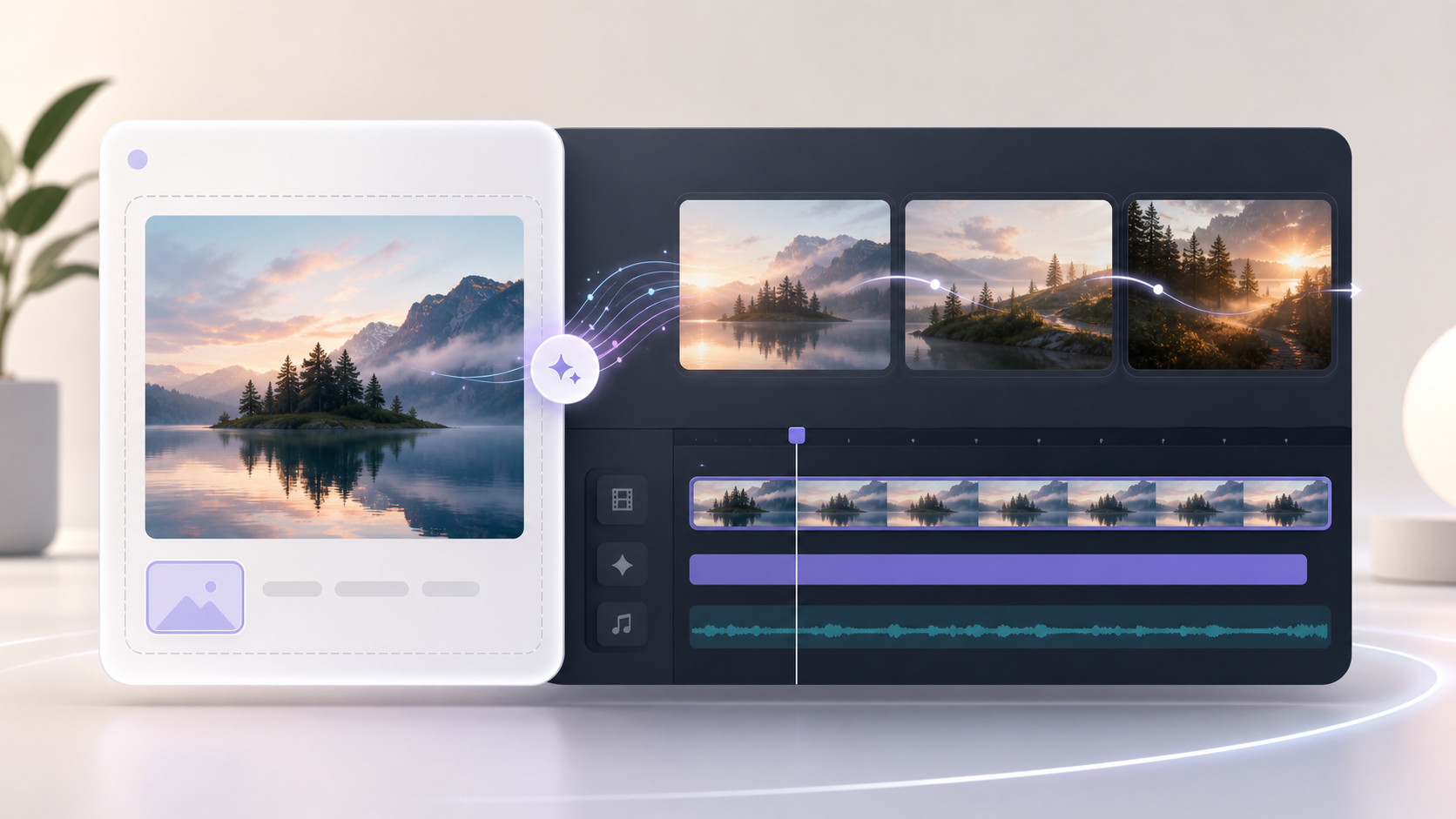
Image to Video AI Generator
Animate a still image with motion prompts and video settings.
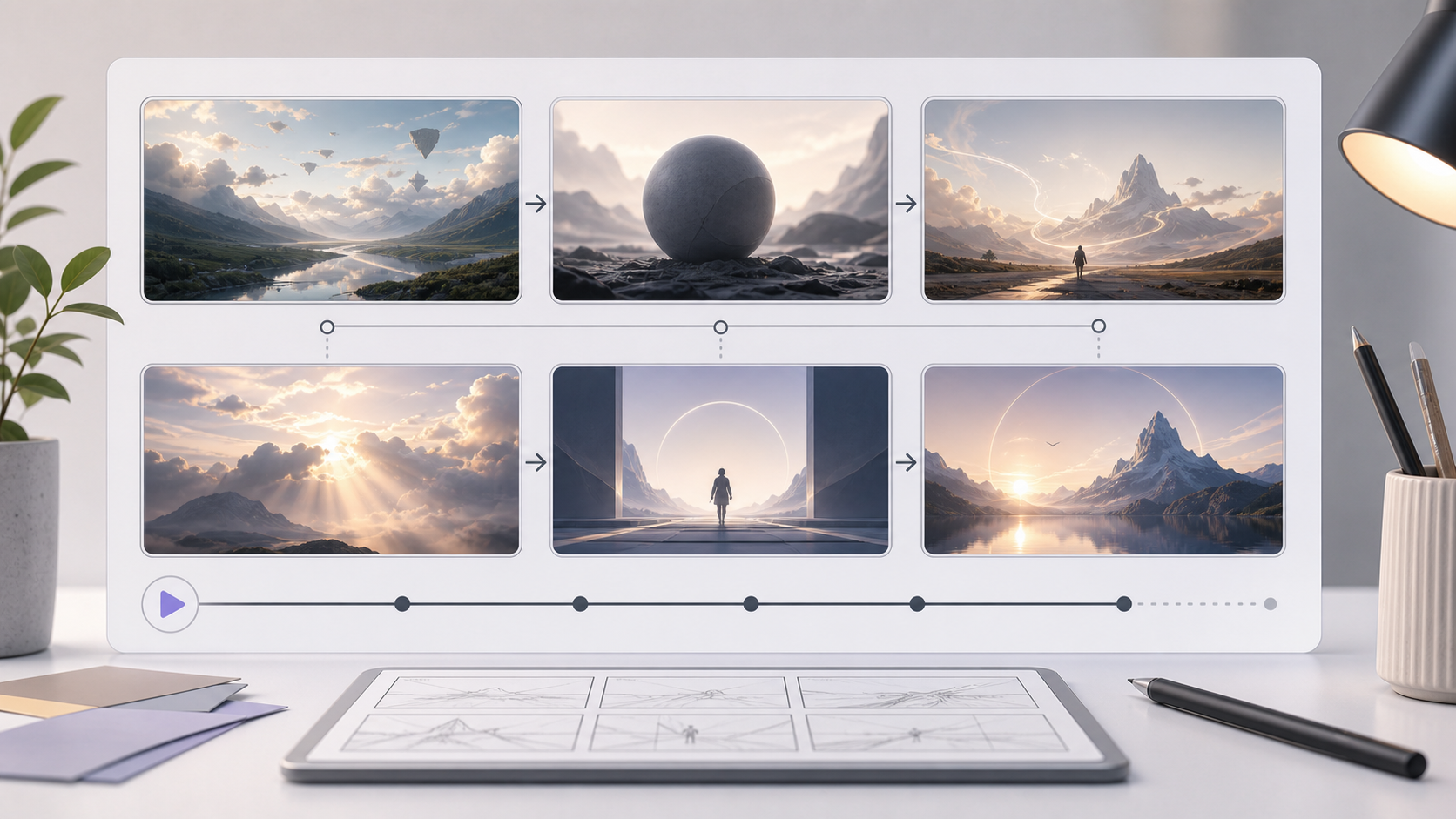
AI Storyboard Generator
Plan a video sequence before generating individual clips.
How to Turn Text Into Video With AI
A practical prompt formula, four-step workflow, and worked examples for creating AI video from text.

How to Use Reference to Video AI
A practical guide to multimodal references, @ asset roles, conflict avoidance, prompting, and one-variable iteration.
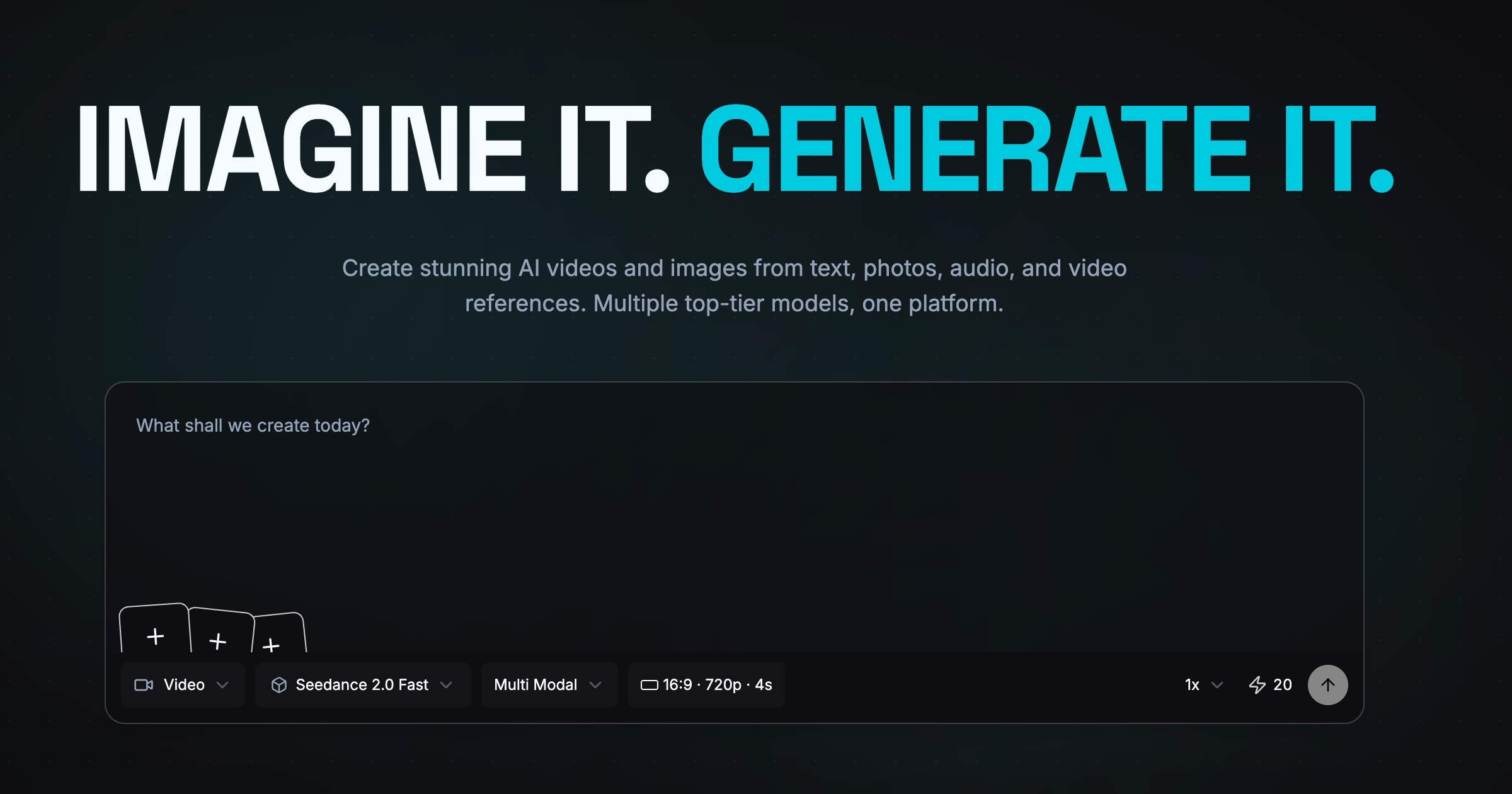
Pricing
View the available plans for different creation workflows.
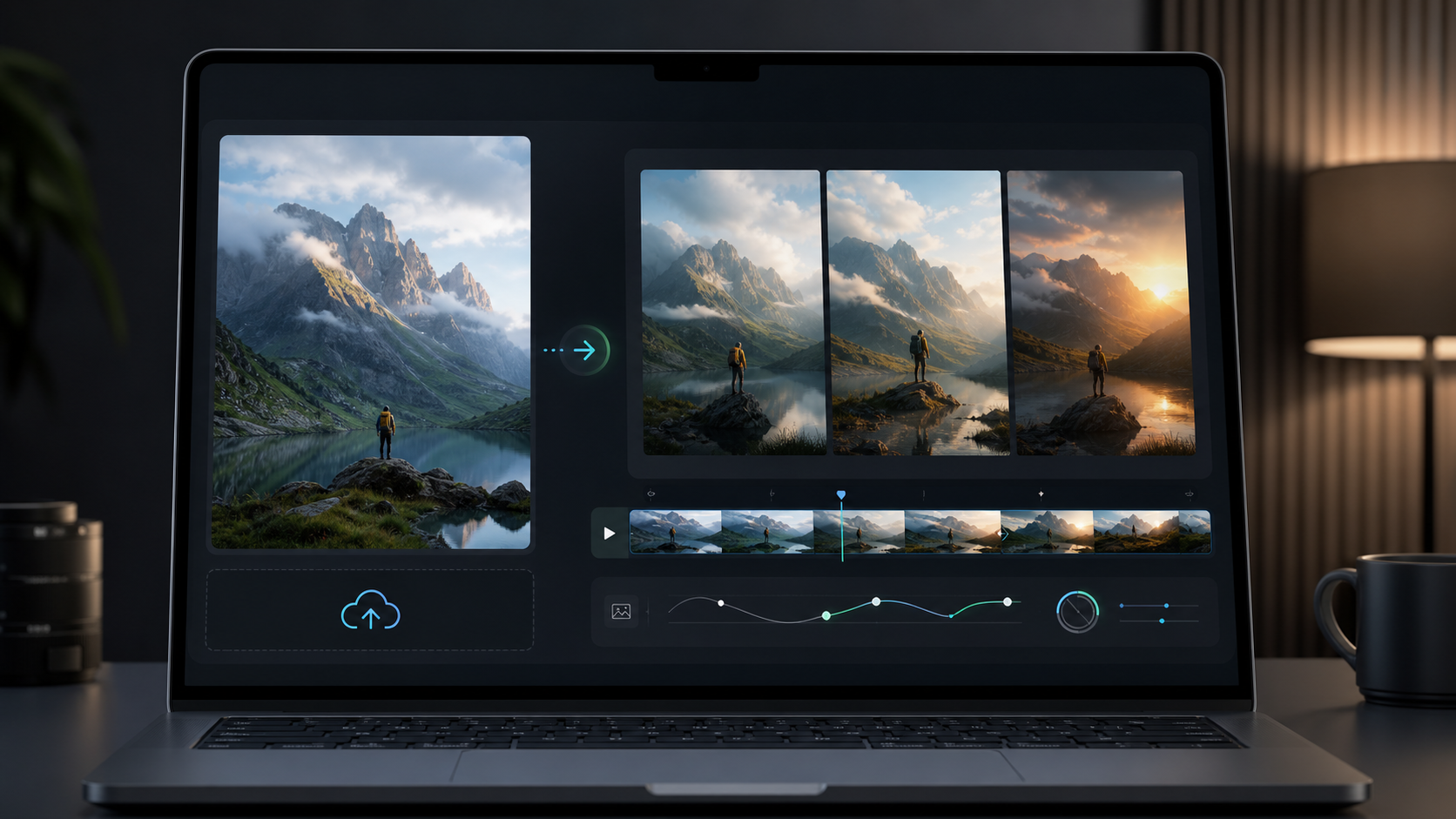
How to Turn an Image Into a Video With AI
Prepare source images, motion prompts, and revision checks.
Text to Video AI Generator
Create a video from a written prompt with focused model and output controls.
Create an AI video online
Open the generator, choose a text or image workflow, and start with a focused prompt for your next clip.