AI Image Generator
Create original images from a text prompt or optional reference image. Adjust the aspect ratio and resolution to bring your creative vision to life.
What Can You Create With an AI Image Generator?
Turn a detailed prompt into a new image
Describe the subject, setting, lighting, composition, and style you need. LumiYing sends that brief to the selected image model so you can compare ideas without drawing the first draft manually.
Guide the result with an image or photo
Add one or more reference images when words are not enough. Use them to communicate a subject, product, palette, composition, or visual direction while keeping the prompt focused on the new result.
Find the look that fits your image
Compare variations from the same prompt or reference. Adjust the available settings to explore visual styles, fine details and how closely the result follows your brief.
Set the aspect ratio and resolution before generation
Prepare square, portrait, landscape, or widescreen visuals for social posts, product pages, concepts, storyboards, and campaign drafts. Available ratios and resolutions update with the selected model.
AI Image Generator Examples and Prompts
Open an example to inspect the generated result, then use Make Similar to continue from its prompt in LumiYing.
How to Generate AI Images
Write a clear image prompt
Describe the subject first, then add the setting, composition, lighting, mood, materials, and style. Include only details that matter to the final image.
Choose a model and output settings
Add reference images if needed, then select an image model, aspect ratio, resolution, and quality that match the intended use. Available settings depend on the model.
Generate, review, and refine
Check subject accuracy, composition, text, hands, edges, lighting, and unwanted artifacts. Change one prompt detail or setting at a time before generating again.
Why Use LumiYing as an AI Image Generator?
LumiYing combines multiple image models with practical controls and connected creator workflows, while keeping access, credits, and model-dependent usage rights clear.
One prompt, multiple image models
Compare variations from the same prompt or reference. Adjust the available settings to explore visual styles, fine details and how closely the result follows your brief.
Text-only or reference-guided creation
Start from a blank prompt or add reference images for subjects, products, palettes, composition, or art direction. The same entry point supports both workflows.
Settings that follow the selected model
Aspect ratio, resolution, quality, and other controls reflect the current model rather than promising one output format that every provider cannot support.
Continue into editing, scenes, and video
Move from a generated still into the AI Image Editor, scene and character planning tools, or Image to Video without rebuilding the creative brief on another platform.
AI Image Generator FAQ
What is an AI image generator?
An AI image generator turns a text prompt and, when supported, reference images into a new visual. The model interprets the subject, setting, composition, lighting, and style described in your prompt and generates an image from that brief.
How do I generate AI images from text?
Write a prompt that names the subject, scene, composition, lighting, mood, and style. Choose an image model and output settings, generate the result, then refine one detail at a time based on what the first image gets right or wrong.
Can I generate a new image from a reference image or photo?
Yes. LumiYing supports optional reference-image workflows for current image models. Upload one or more references to communicate a subject, product, palette, composition, or visual direction, then explain the new result you want in the prompt.
What is the best AI image generator model?
Start with the available default settings and a clear prompt. Compare composition, detail and reference consistency, then change one setting at a time to find the look you need.
Is LumiYing a free AI image generator?
You can open the tool page and prepare prompts freely. Actual image generation may require signing in and using credits depending on the selected model, resolution, quality, and count, so LumiYing does not promise unlimited free generation.
Do I need an account or credits to generate images?
Generation requires an account and credits. The cost varies with your chosen settings. Review the amount shown in the workspace before generating.
Which aspect ratios and resolutions are available?
Available ratios and resolutions depend on the selected model. LumiYing updates the controls when you switch models so you can choose from the formats that model currently supports.
Can I use AI-generated images commercially?
Commercial-use and ownership rules can differ by model, provider, plan, jurisdiction, and intended use. Review the terms that apply to the selected model and avoid infringing trademarks, copyrights, privacy, or publicity rights.
How can I write a better AI image prompt?
Put the scene and subject first, then add only the important composition, camera, lighting, material, palette, and style details. State hard constraints clearly, avoid conflicting instructions, and refine one variable per generation.
Can I edit or animate the generated image afterward?
Yes. Continue with the AI Image Editor for prompt-based changes, or use Image to Video to add motion. Scene, storyboard, and character tools can also help organize the image for a larger production workflow.
How fast does AI image generation take?
Generation time varies by model, resolution, quality, count, and service load. LumiYing does not promise one fixed generation time for every model or request.
Related Image Tools and Resources
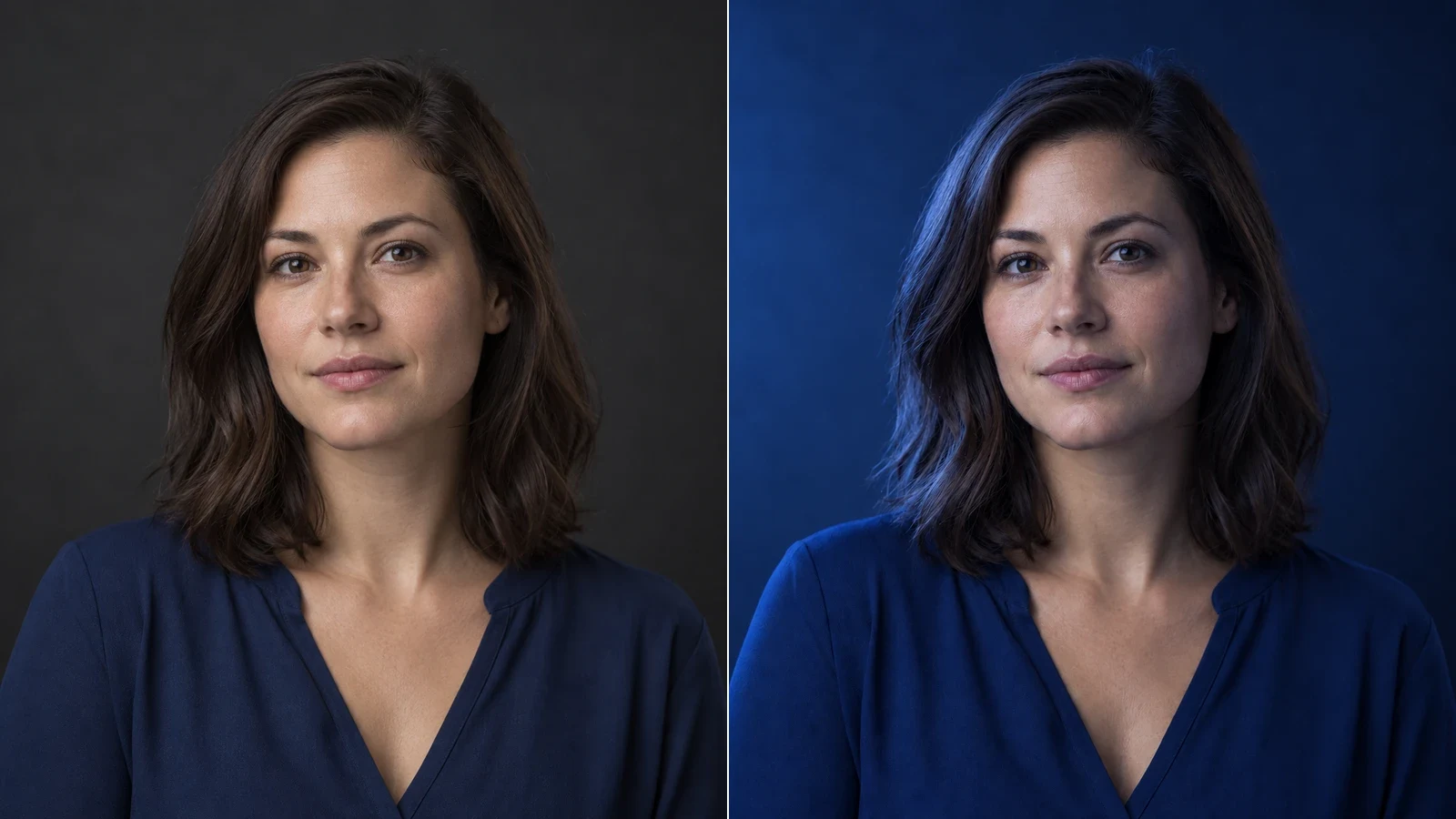
AI Image Relight
Change the direction and mood of light in a photo while keeping the subject, composition, text, and product details under review.
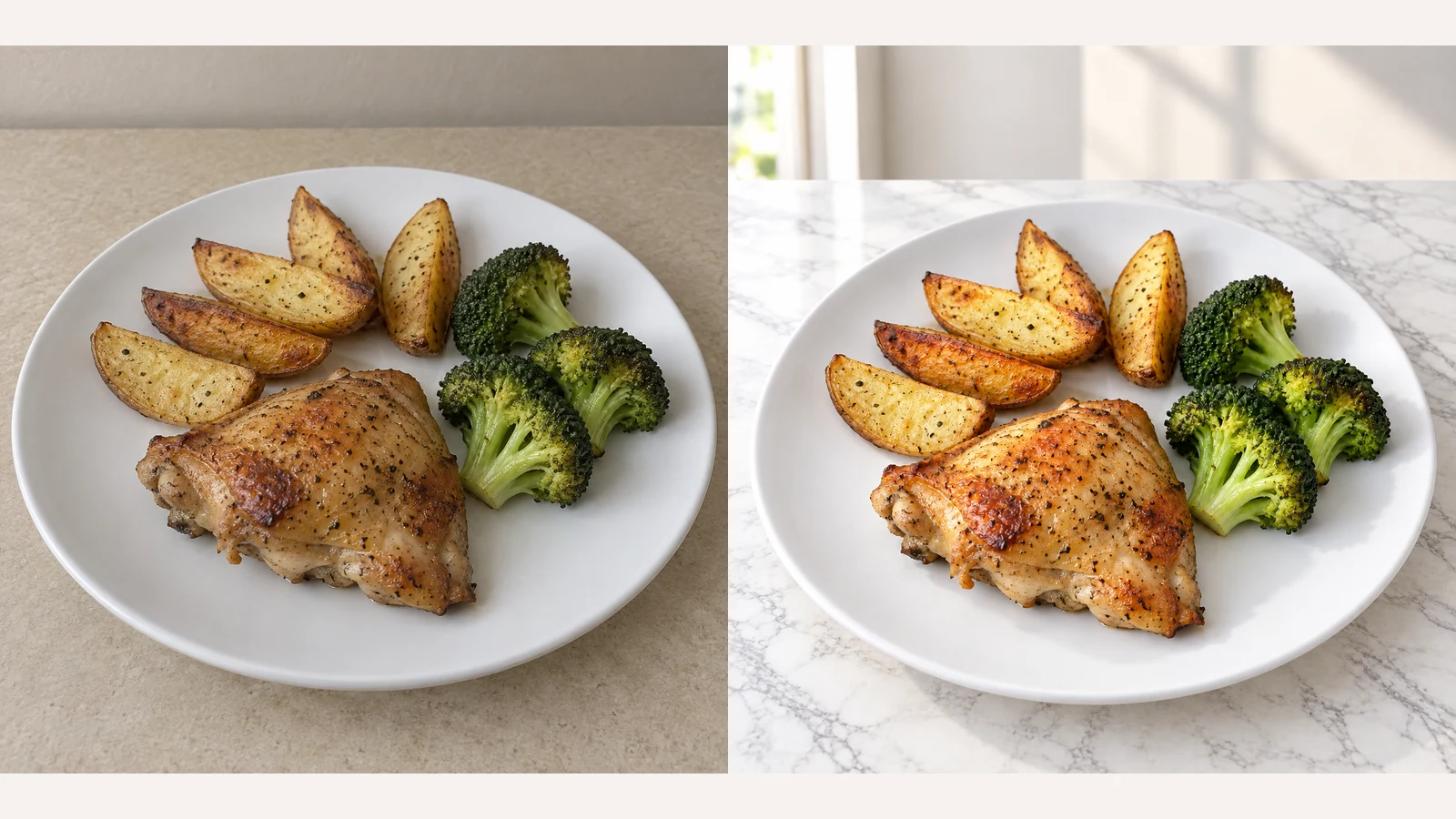
AI Food Photography
Change food-photo backgrounds and choose an appetite-enhancement template for restaurant menus, delivery listings and food ecommerce. Upload your own background or try a sample, then choose an output ratio.
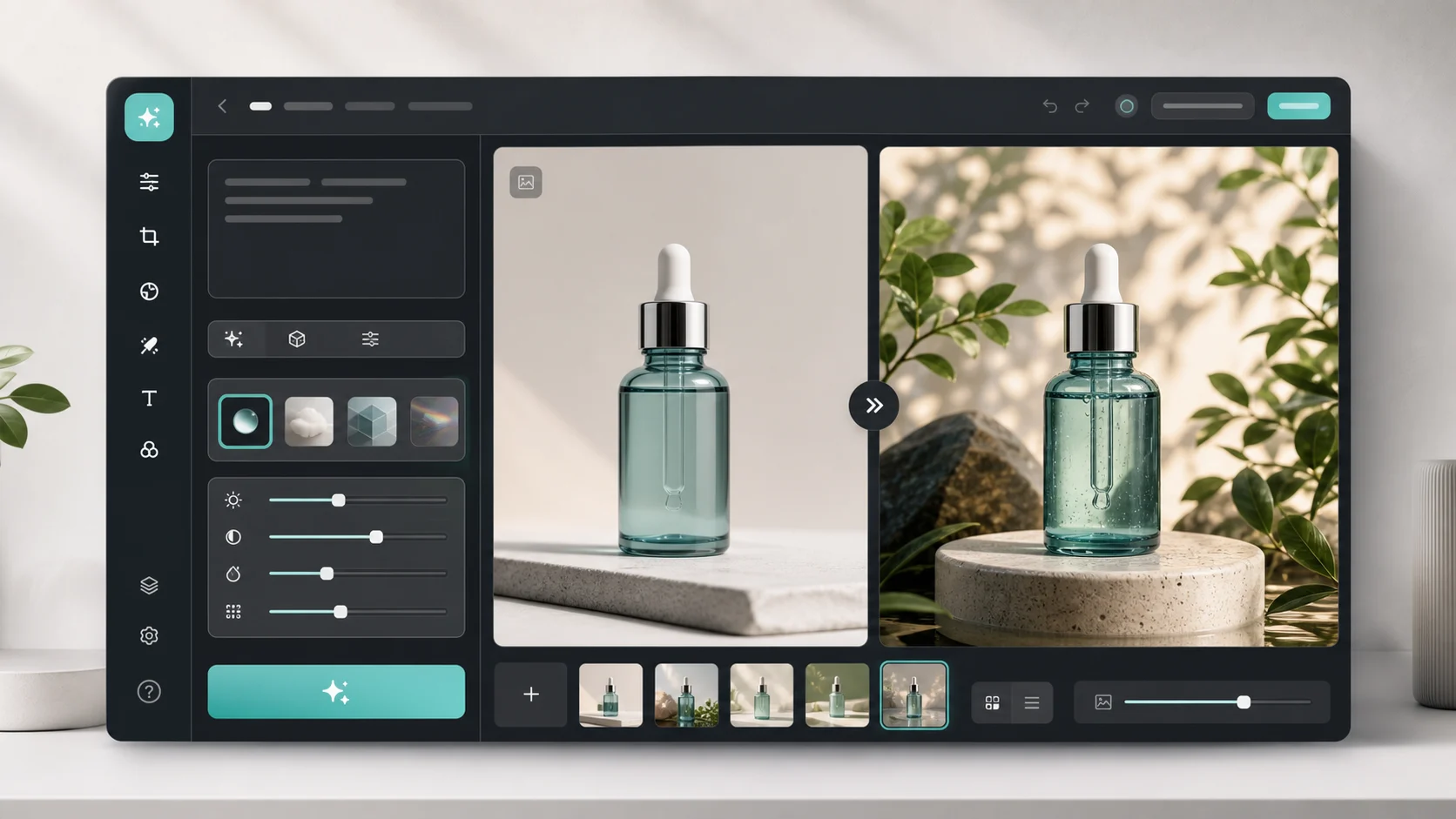
AI Image Editor
Upload a generated image and change the background, lighting, objects, or style with a prompt.
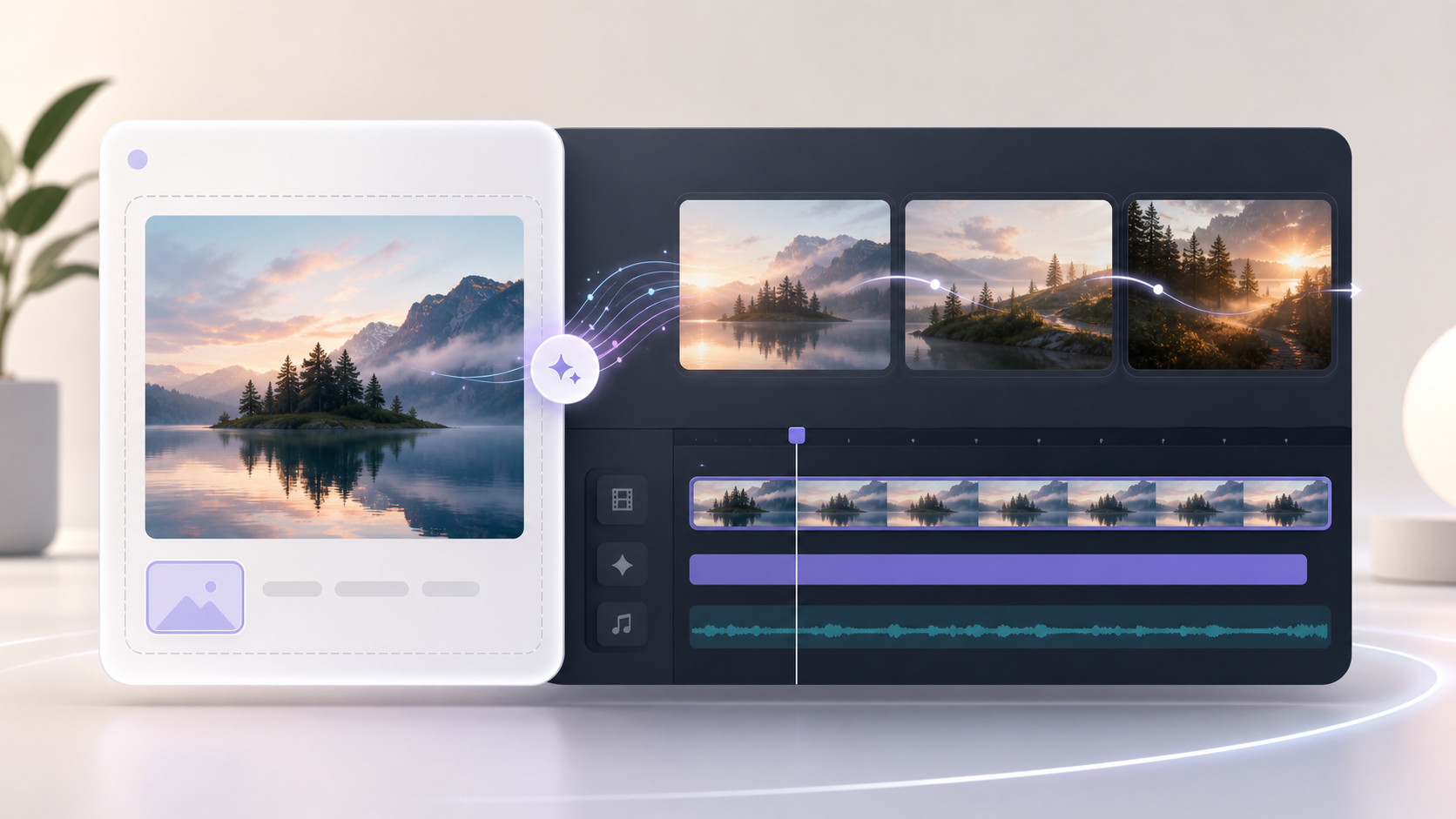
Image to Video AI
Turn a finished generated image into a short AI video with a motion prompt.
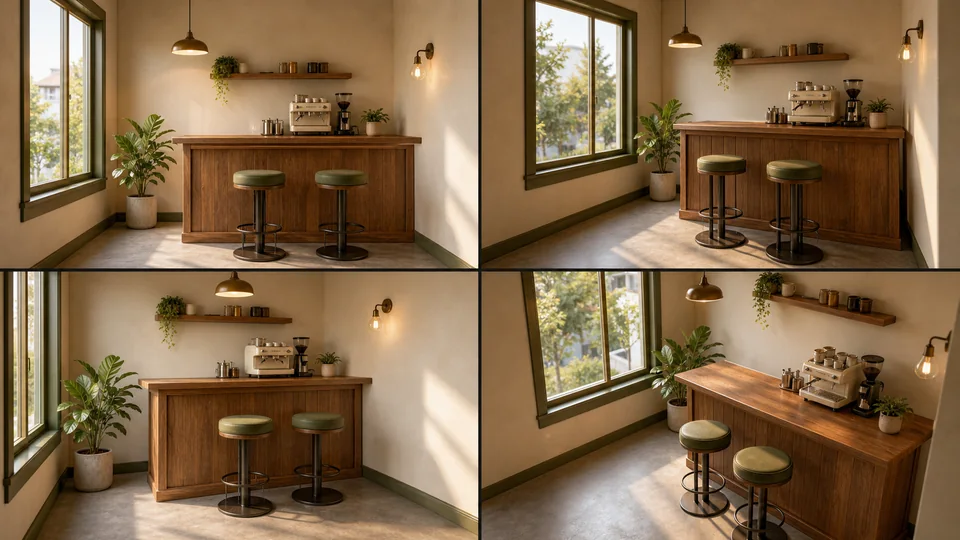
AI Scene Generator
Create consistent scene views for storyboards, campaigns, and video planning.
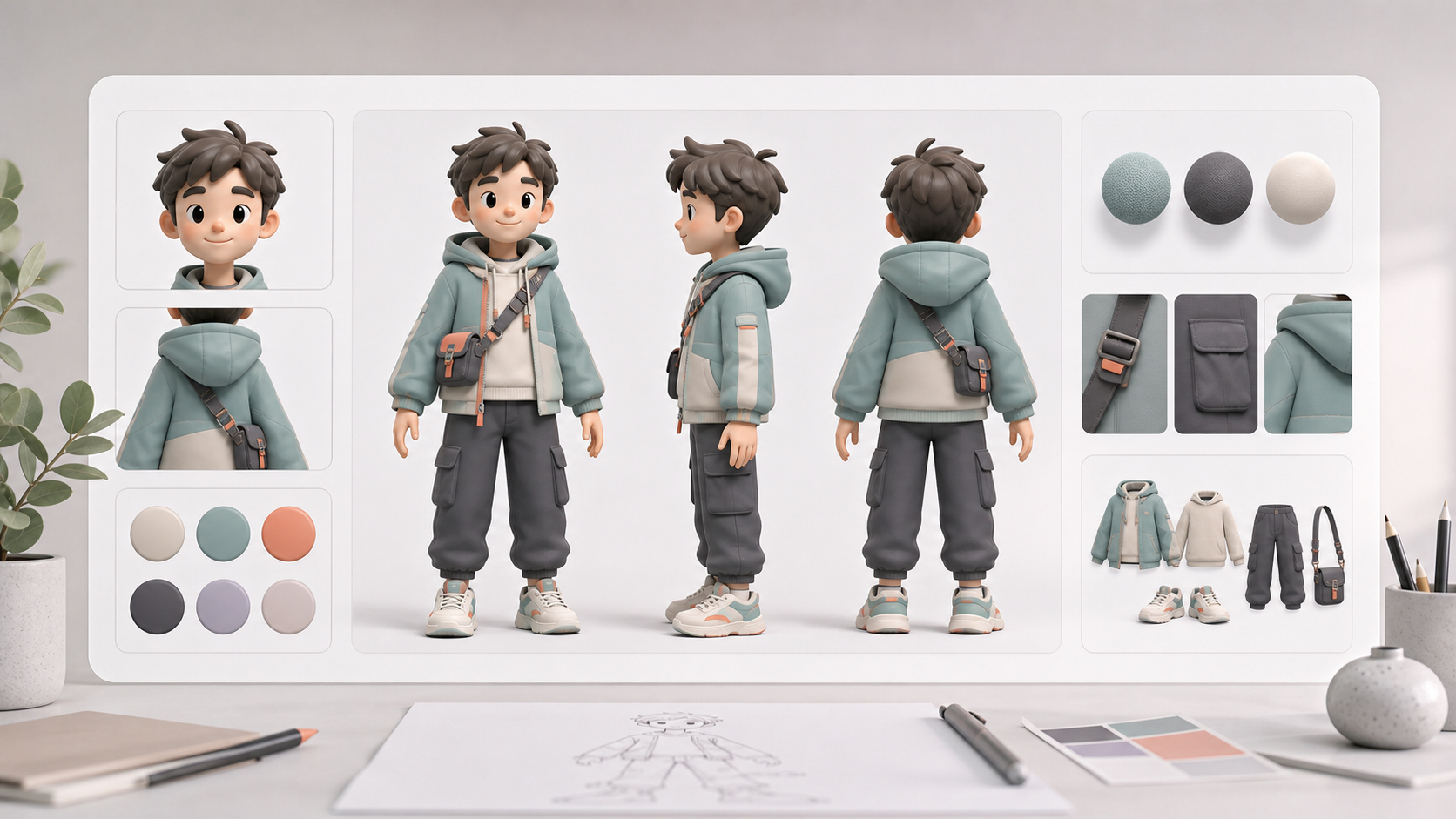
AI Character Sheet Generator
Build a reusable character reference sheet from a visual concept.
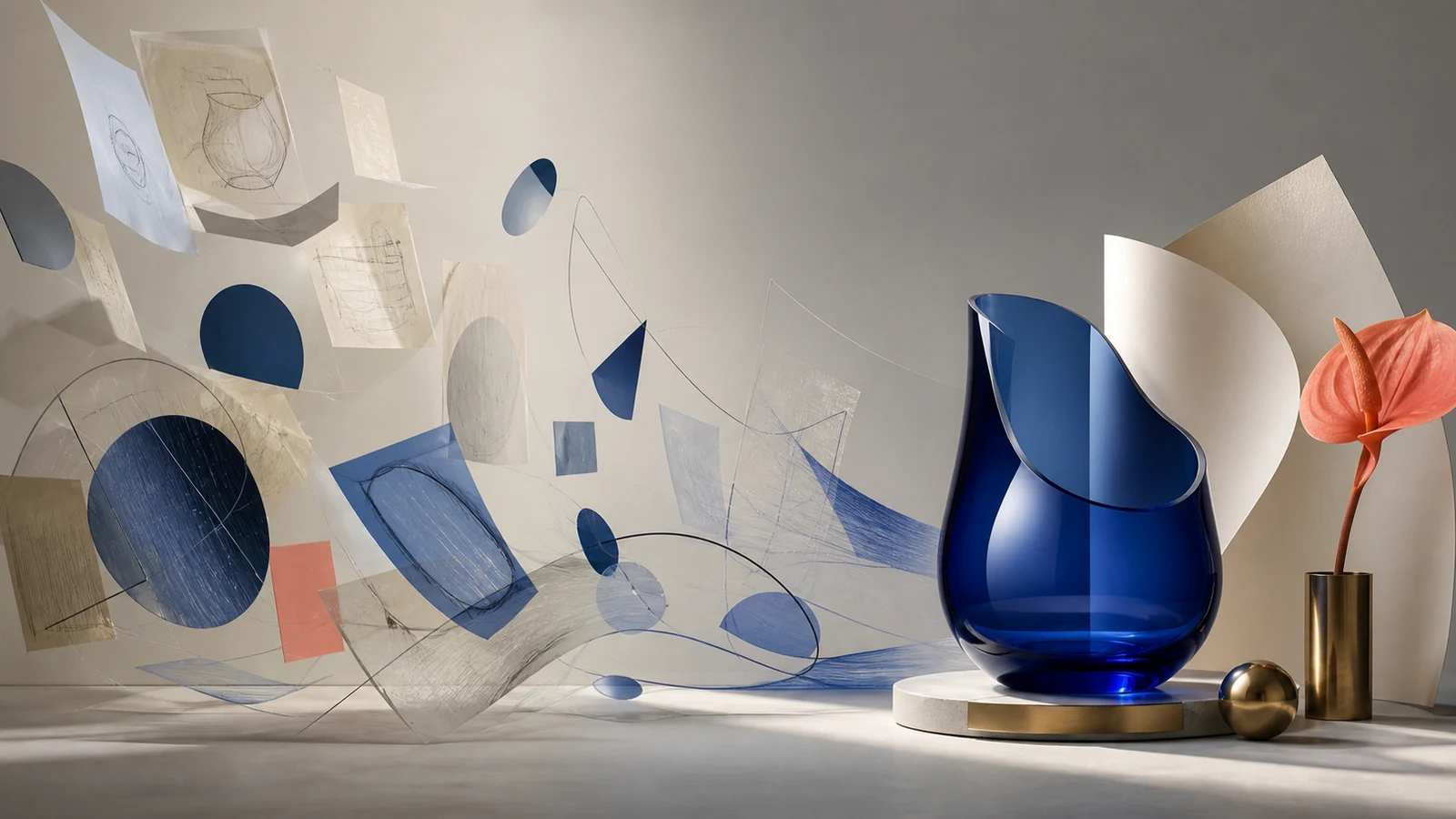
How to Write AI Image Prompts
Use a seven-part visual brief and 10 explained examples to write more controllable image prompts.
Create your next image with AI
Write a prompt, add a reference if needed, choose an image model, and generate a visual you can refine in LumiYing.